USA, Canada, Mexico, Columbia, Australia, Brazil, Japan are not supported at the moment.
Suitable for:
Launch X431 PAD V Elite
Launch X431 PAD VII Elite
Or the customer who bought the Smartlink C.
Smartlink B please order the Annual Subscription.
Q: Hi there, how can I add Super Remote Activation License on my PAD VII Elite?
A: Hi, thank you for your question, here is the solution:
PART 1. Please open the link: https://smartlink.x431.com/login

2. Log in with your X431 username and password:


3. Bind the device on SmartLink Service Platform
1) Click ”ok”

2) Enter your device S/N and Activation code on your password letter.

This is the S/N on your scanner and the activation code on the password letter, not the 24digits.
3) Choose times or year choose passanger car or truck.
If you are purchasing an annual card, please select: Pay-per-year
If you are purchasing a times card, please select: Pay-per-use

4) Then click ”ok”.

4. Then you need to order a LAUNCH Super Remote Activation License here.
Please Note Before the Purchase:
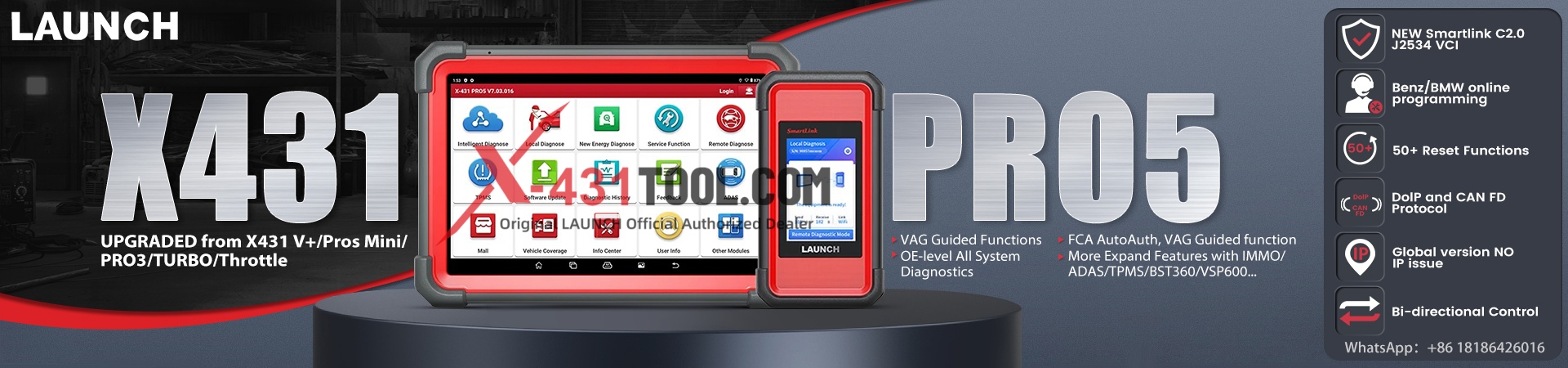
1. Only supports devices using Smartlink C as VCI. Such as X431 PAD V Elite, PAD VII Elite, PRO5, Smartlink C V2.0 and Smartlink B.
2. The first-time Super Remote Activation License inside comes with the free 3 times the card, valid for one year
3. You can buy the card according to your needs after the free 3 times card is used up. There is no annual fee, the charge is per time.
4. USA, Canada, Mexico, Columbia, Australia, Brazil, Japan are not supported at the moment.
5. Please make sure to provide the serial number of your device to us at sales@x431tool.com after purchase.
6. This Super Remote Activation License does not need shipping, please give us 2-3 working days to process it.
Then we will send you the activation code (key) and you enter in this page, then click ”Activate” :
Enter the card number and 24digits we sent.

5. Your device now has a successfully activated Super Remote Activation License!

6. You can Start Use and create an appointment

Fill in your information, then submit:


7. Then, Appointment Done now, you can enjoy the super remote function.

8. Connect your Smartlink to the network and wait for the connection code to be generated here.
Once you get the code, please offer it to your Smartlink B operator to connect to your Smartlink C.

PART 2: If you have more Smartlink devices, you can click “Add a device” on this page, and then input
product serial number and activation code:

3)Now, you can post requests by click “Post request”

4) After you post a request, you have to wait until a professional technician accepts your request.
Your contact information will be forward to them for future communication. And the request status will change to “In Process”:

5)When you and the technician schedule the remote time, you have to connect Smartlink C to your vehicle and follow his/her instruction, such as ignition on/off, etc.
6)After the technician fixes your vehicle, you can post your review on the platform:


PART 3. Check your remaining Times

Leave a Reply